

Hey everyone! It’s been too long! Since the last time I helped Shopify put shaders on the Vegas Sphere on Black Friday, I have been working on VFX for Order of the Sinking Star and some other exciting projects I can’t talk about yet.
I’ve also started building FragCoord.xyz, my take on shader editing, debugging, and analysis in your browser. None of the existing tools fit my needs; some are stagnant, others are niche. I wanted to make something capable for professionals and hobbyists. Today, I’d like to show you where it’s at currently and the cool things you can do with it now.
Introduction
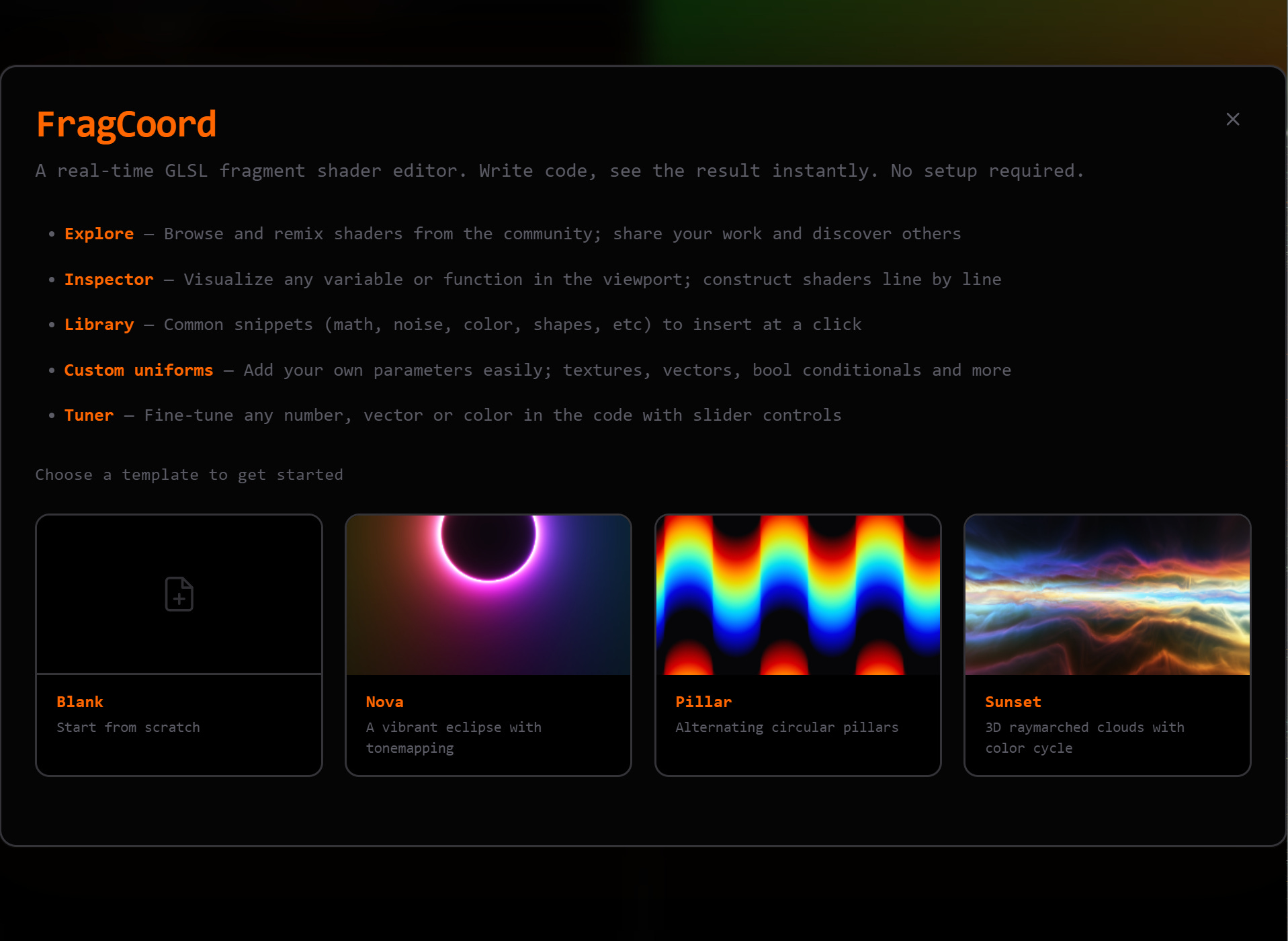
When you first visit FragCoord.xyz, you are greeted with a template shader screen and a quick overview of the current features (subject to changes in the near future):
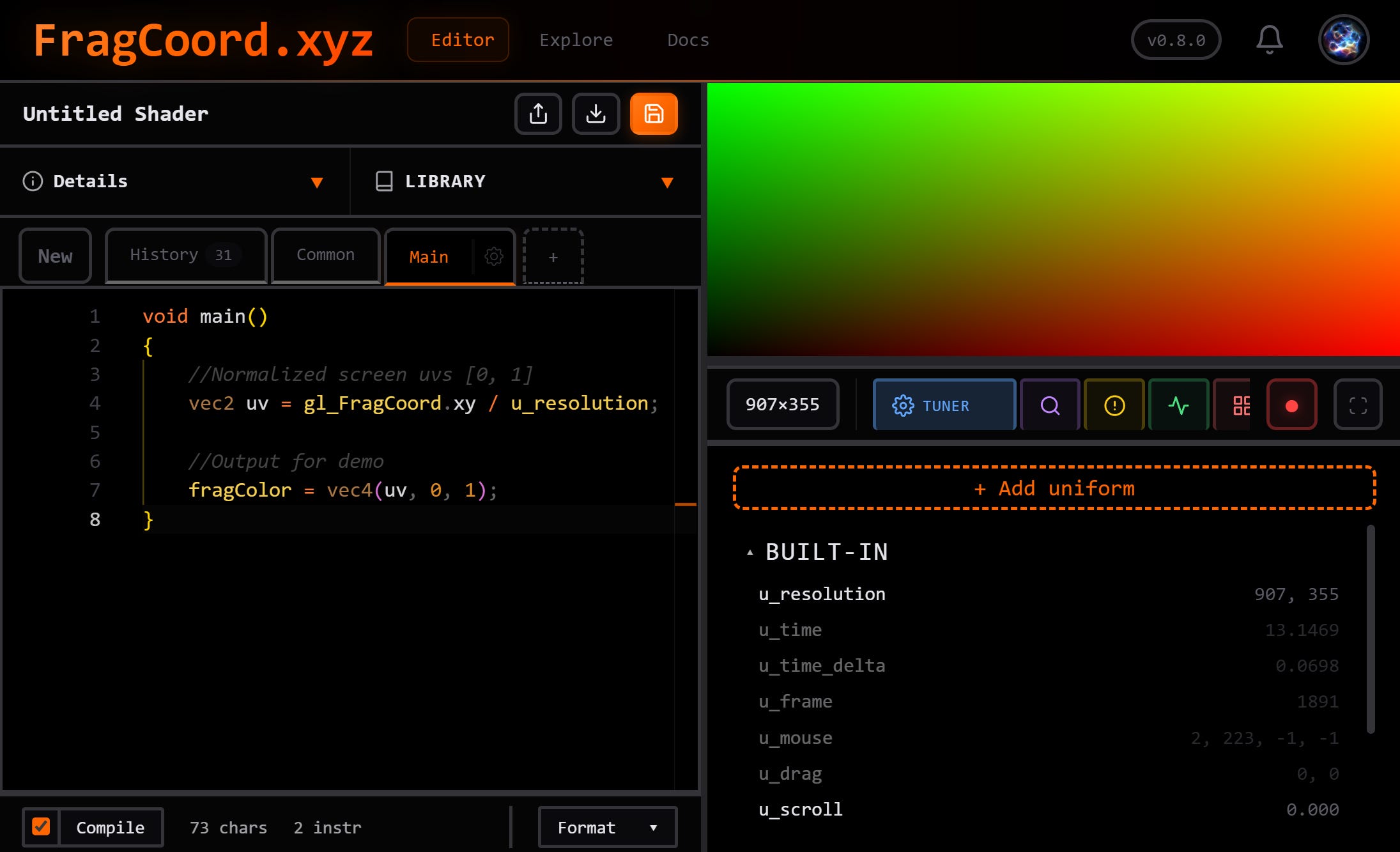
The Editor is where you start and where you edit shader code with a shader display on the right. The editor is designed to be flexible with resizing and layout options (additional options on the settings page).
The Explore page shows you the top shaders and feed if you follow shader creators.
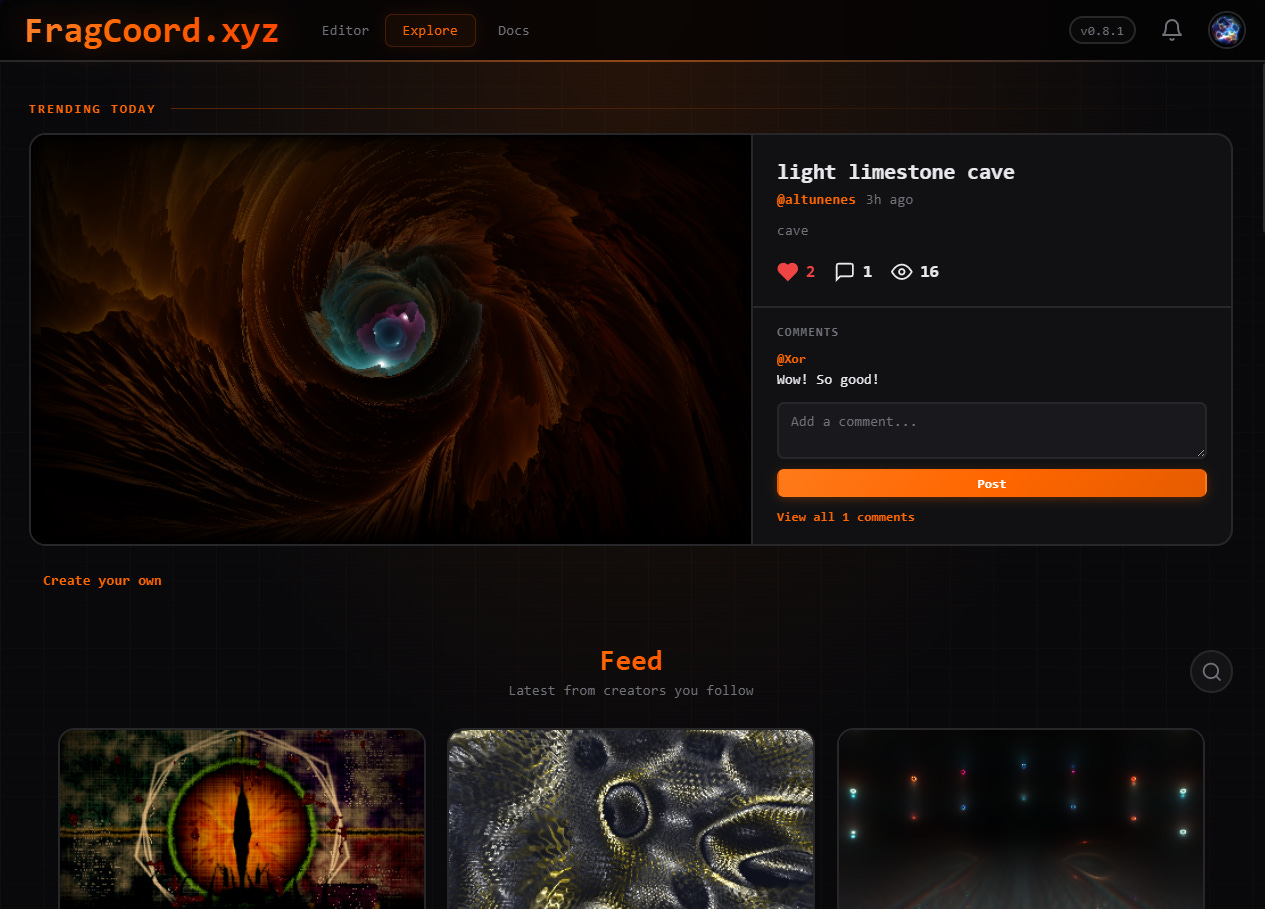
Here you can find other shader examples, like, comment, and follow.
The Docs are documentation for FragCoord, editor tools, uniforms, rendering, import/export, and other technical details for FC.
Let’s take a closer look at the editor and the inspector tools.
Inspector Modes
Under the shader preview, you’ll see 5 inspector modes (Tuner, Inspect, Errors, Frames, and Heatmap). Each of these gives you a different lens to examine the shader.
Tuner - Adjust inputs
When nothing is selected, the tuner shows all the built-in uniforms supported in FragCoord, such as u_resolution for the shader resolution and u_time for the time elapsed in seconds. The uniforms used in the code are highlighted (the rest are grayed out). The live values of those uniforms are shown on the right side:
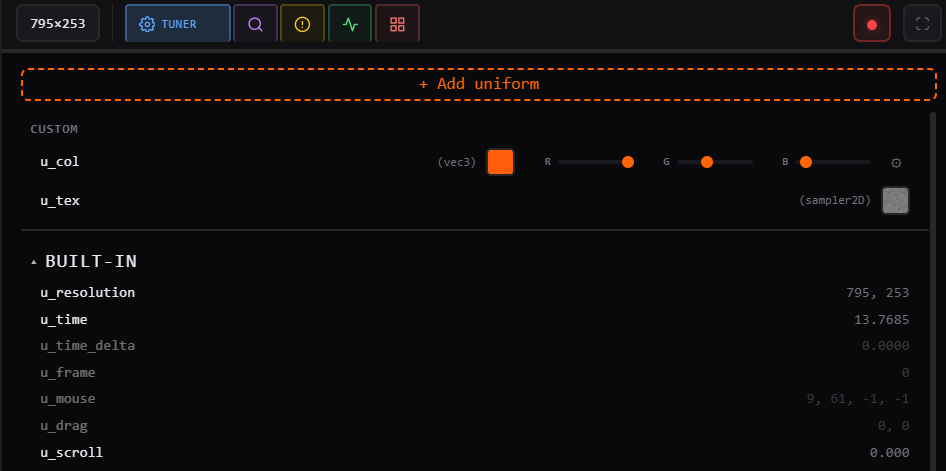
You can add your own uniforms, such as RGB colors, textures, or anything else, with the Add uniform button. This lets you pick the data type, and then you can adjust it with the sliders needed. The tuner can also be used to adjust any selected value in the code. This makes it easy to tune magic numbers and see what each number does.
Inspect - Visualize expressions
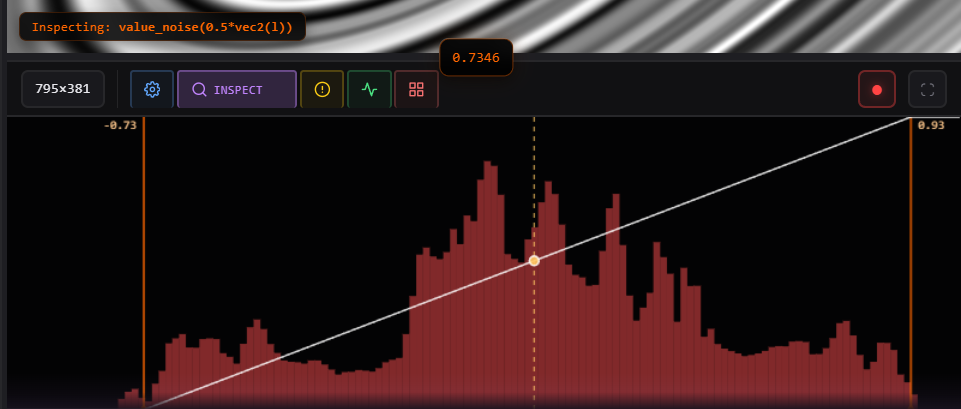
The Inspector lets you look at each stage of the shader. You can select a variable or expression in the main function see what the output looks like in the shader port. Hover with the mouse to see the values at the cursor.
In the Inspect panel, you’ll see the histogram of the selected expression, the minimum and maximum values (the display is normalized to the 0.0 to 1.0 range). If your shader is producing unexpected results, it can help to look through step by step.
Errors - Find NaN and Inf
Sometimes a shader produces an unexpected black screen or black pixels. This is often caused by Not-a-Number errors (for example, division by 0). You can toggle individual checks for NaNs, Infs, and Out of Range tests for colors outside of the 0 to 1 range.
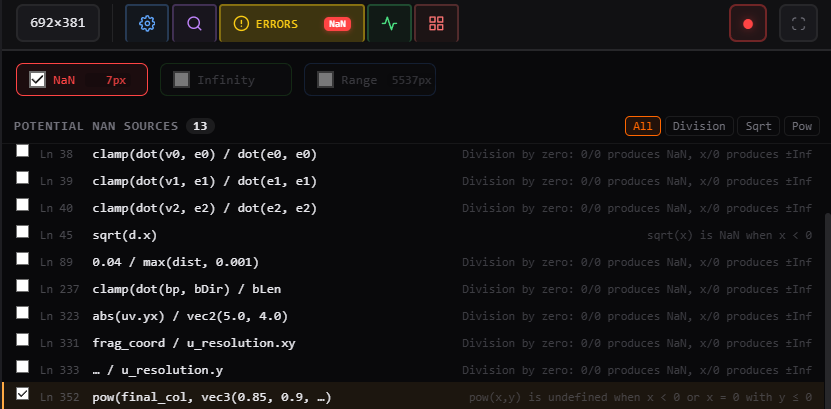
You can also select individual lines to see the errors for that line. Errors are shown with checkerboards (NaNs are Red/Cyan, Infinities are Green/Magenta, Ranges are Blue/Yellow).
Frames - GPU time graph
A standard frame graph view that gives you CPU and GPU time, milliseconds, and frames per second modes, and stutter points. You can pause the timeline by clicking in the box or change the range in the bottom-right. Frames is for helping you find lag spikes and monitor the overall performance of your shader.
Heatmap - Per-pixel cost
The heatmap shows you the instruction cost for each pixel (or chunk). Most shaders have a uniform instruction count, but you can get divergence with conditional for-loops or if statements.
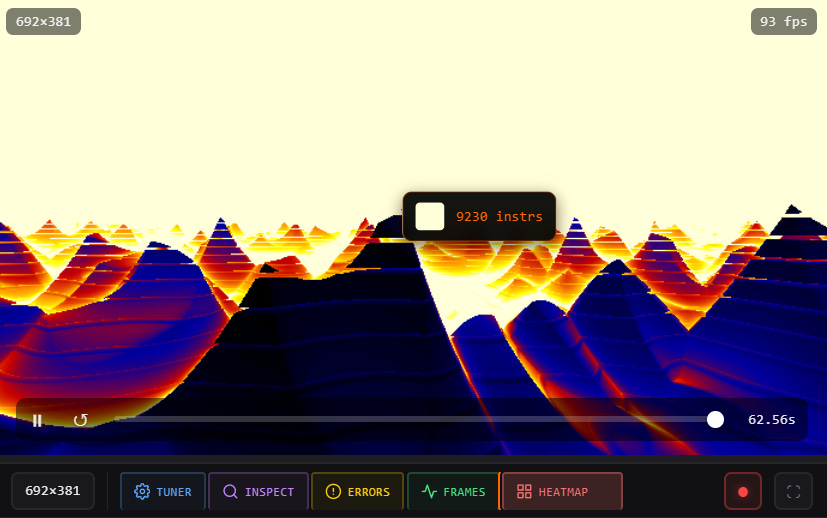
The heatmap can highlight the most problematic areas and give you a sense of what to optimize. Ideally speaking, you want to minimize instruction costs and recognize that the pixels are chunked together, so if you have a low-cost pixel next to a high-cost one, you may be paying the higher cost for both. Less variance is generally better. I plan on adding more tools here to help with this.
Import, Export, and Formatting
To help make FragCoord a universal tool, it automatically converts ShaderToy or twigl code to FragCoord’s format, uniforms, and structure. Ideally, you can copy and paste shaders over, and they’ll just work.
Next to the save button, there’s an export button that lets you convert to other common languages and formats (WebGL, ShaderToy, HLSL, Metal, and WGSL):
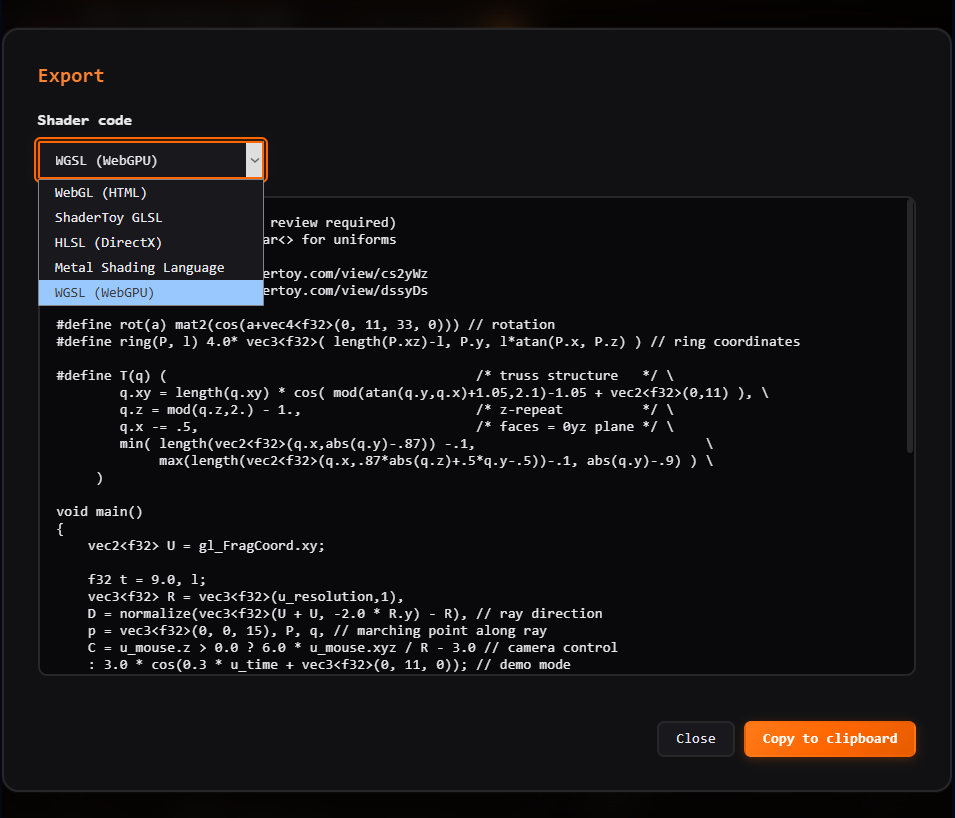
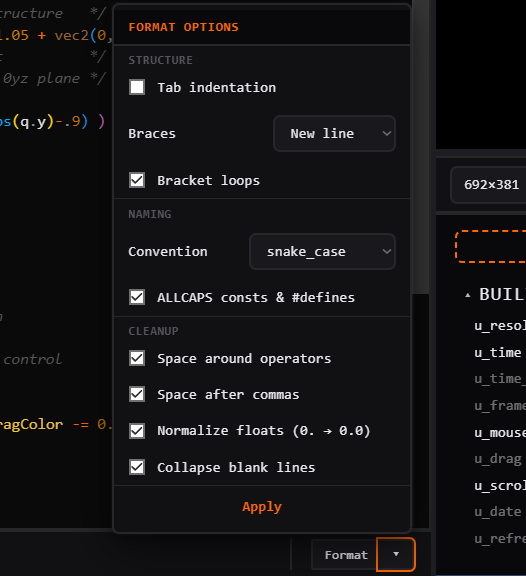
So much time can be spent manually converting code languages when it’s relatively easy to automate. I’ve also added an automatic formatting tool to organize your code. This reformats the shader to fit your chosen convention and can be helpful when using code from multiple different sources.
When there are errors, you can see them by hovering over the error line or the error count at the bottom of the code:
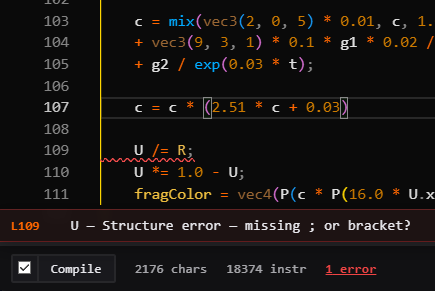
You also have the auto-compile check box and manual compile button. A character counter for the minimized shader and an approximate instruction count (hover to see line-by-line estimates). This is meant to help with optimization and performance awareness. The instructions count is roughly equated to performance cost.
Code Library
Finally, the code library is the place where you can save and reuse your most useful functions, such as noise functions, rotations, color transformations, and many more.
FragCoord has you start with the most common ones, but you can remove or add your own as you like:
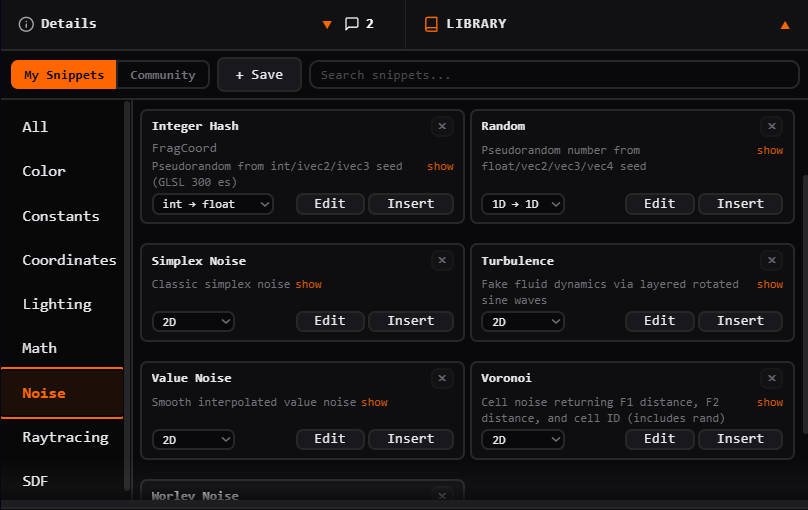
The community tab is where you can find other code snippets from other users and share your own. I want this to be the main grounds for distributing functions. The code library is meant to be the place to showcase the best shader snippets and allow for continued development of techniques, not just tech demos. Users can update their code snippets, and it will automatically update for all future references, so if you find improvements to your snippets, you can always tweak them later.
Community
There’s a growing community of 500 members and 650 public shaders in just a couple of weeks! I want FragCoord to become the best place for graphics professionals and hobbyists, to make it easy to learn, build, and share with tools that help bring the best tech forward.
When saving your shaders, you publish them publicly, release them unlisted (not on explore, search, or profiles), leave them personally for yourself, or invite only specific members. For collaborations, you can tag other users in your shaders, and there’s a tagged section on your profiles. Follow users to see them in your personal feed and turn on notifications for specific users if you like.
Please come join FragCoord.xyz and help shape its future. I’m still constantly tweaking, fixing, and improving. Let’s make this the best place for the graphics community. If you want to suggest features or report bugs, click the changelog.
Thanks,
-Xor
I've been lurking your posts for years and I've never commented on them, but I wanted to let you know that fragcoord.xyz is sick! Easily the best online interactive shader editor I've seen, kudos and thank you for the amazing work! Any plans to make it open source? (unless it is already and I missed that)
I think it is fantastic!
JodyB